 Staff Airlines
How to fly standby › Plan a standby trip
How to plan a standby trip with Staff Airlines
Staff Airlines works best when you use it from a few days before the trip right up to the gate: first to choose the flight, then to keep a backup, and close to departure to check the flight with an agent. Here is that plan step by step. New to standby? Start with How to fly standby.
Start a few days out: compare flights and dates before you list.
Plan your trip in the appA few days before: compare flights and dates
Search your route in Staff Airlines and compare estimated open seats and the rating, such as Good or Fair, on every flight. The app covers 500+ airlines, so you see the whole route, not just your own airline.
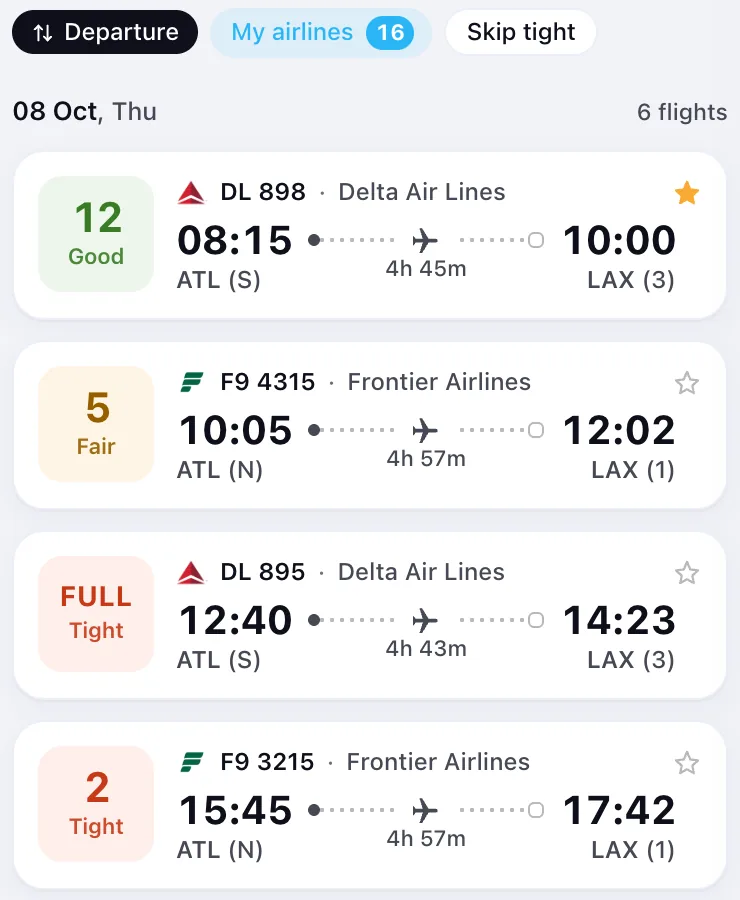
If you're flexible, look at more than one day: loads often differ a lot between dates. Future dates are part of Premium; the free plan shows today's flights, through 3 AM tomorrow.
Two things widen the choice:
- Search by city code, for example NYC, LON or PAR, to see every airport in a city at once.
- Turn on the partner airlines filter (Premium) to see only airlines your employer has ZED and interline agreements with.
How Staff Airlines loads work explains what the estimates and ratings mean.
Save two or three flights in My Flights
Don't plan around one flight. Pick a main option and one or two backups, for example a later flight or a different airline on the same route, and add them to My Flights. That's where you keep the flights you care about, and where flights you follow or asked an agent about appear automatically.
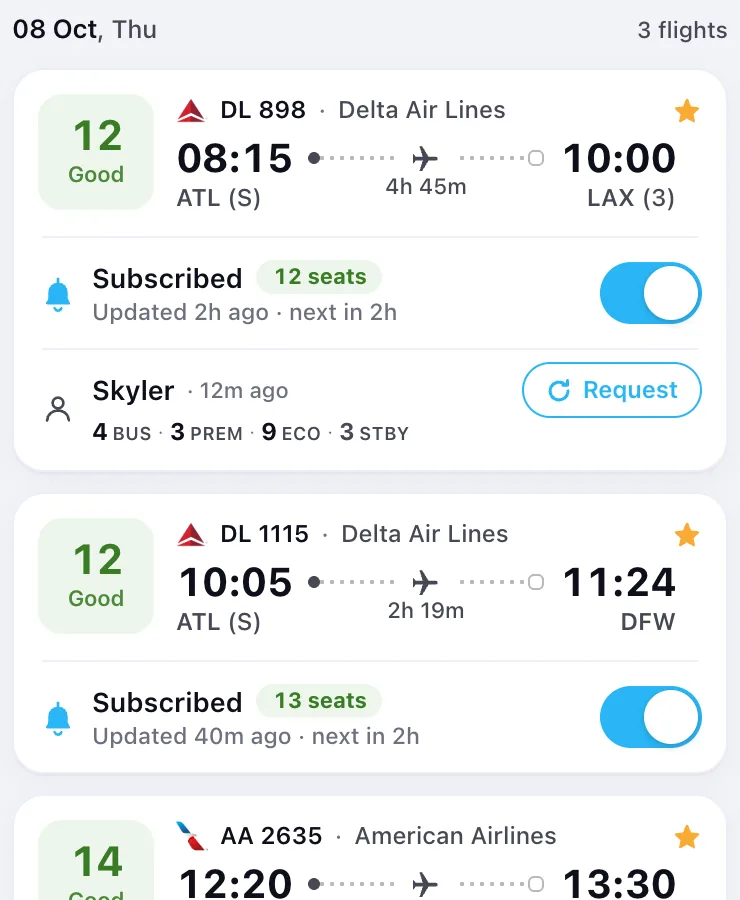
With Premium you can follow a flight (Subscribed in the app): you get push updates on its loads at regular intervals, right up to departure. Updates come on a schedule rather than on every change, so there can be a short delay.
Keep a route via a hub as a backup
If the directs look full, or there are none, Transfer route finder (Premium) looks for connecting routes and shows loads on both legs, so you don't fly to a hub only to get stuck there. It's also the tool to open if your flight is cancelled or you don't get on: Flight cancelled on standby covers what to do then.
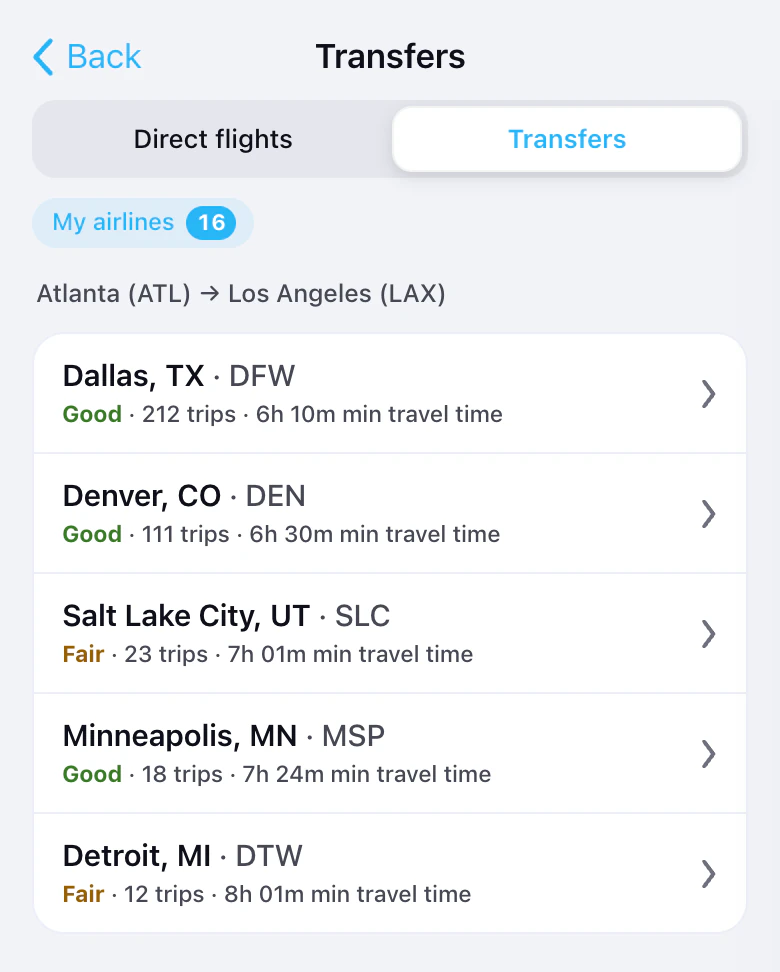
On two separate staff tickets you collect your boarding pass, and any bags, at the transfer airport. Standby connections explains how to plan for that.
The day before or on the day: ask an agent
Estimates help you choose; close to departure, ask an agent to check the flight. Agents work for airlines or at airport check-in desks, are verified when they sign up, and see the flight in the airline's system.
- Open the flight and tap Ask an agent. A request costs one token.
- Once an agent takes it, they have 10 minutes to answer. You get a push notification when they answer, decline or don't pick it up.
- The answer shows open seats by cabin and the standby list (STBY): how many people are waiting for that flight, as the agent sees it.
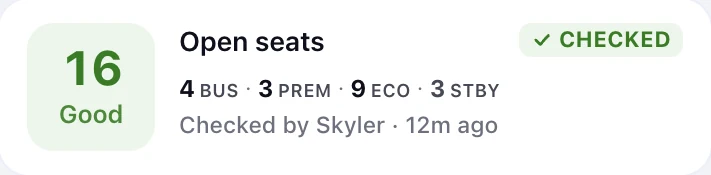
Time the request: an answer counts as fresh for one hour, or for three hours if the flight departs more than a day away. If nobody answers, your token comes back.
Agents earn tokens for every answer, and bonus tokens for picking up requests quickly and for answering on airlines where requests often go unanswered.
You don't need Premium to ask: on the free plan you buy tokens in packs, and Premium plans include tokens. Agent coverage differs by airline, so on some flights no agent may pick up the request.
At the airport
Airport schedules (Premium) show departures and arrivals: flight status, gate, delays and cancellations. Use them to check that your flight is still on time before you head to the gate, and to see what else leaves the airport if plans change.
If you don't get on, go back to the flights you saved. A backup you chose calmly a few days ago is better than one picked in a hurry at the gate. Rules and deadlines differ by airline, so check yours before you travel.
Questions, answered
How far ahead should I start planning a standby trip?
A few days before: compare flights and dates, save a main flight and one or two backups, then check again the day before and on the day of travel. Loads change until the doors close.
Can I see loads for future dates in Staff Airlines?
Yes, with Premium. The free plan shows every route and every airline for today, through 3 AM tomorrow.
When should I ask an agent to check my flight?
Close to departure, the day before or on the day. An answer counts as fresh for one hour, or three hours if the flight departs more than a day away.
Do agents get anything for answering?
Yes. Agents earn tokens for every answer, and bonus tokens for picking up requests quickly and for answering on airlines where requests often go unanswered.
What if the direct flights are full?
Look at other airlines, nearby airports and connections through a hub. Transfer route finder in Staff Airlines (Premium) shows connecting routes with loads on both legs.
Loads are estimates and don't guarantee a seat, even after an agent replies: boarding decisions are made by the airline. Found a mistake? Let us know.
Pick the flight, then list
Staff Airlines shows estimated open seats on the flights you're considering, so you list on the one with the best chances. Free on iPhone and Android.
Check your flight